Spy App vs Parental Control App: What's the Difference?
Understand how spy apps and parental-control apps differ in visibility, controls, alerts, platform coverage, and everyday family use.
By MobileTracker360 Editorial Team · 4 min read
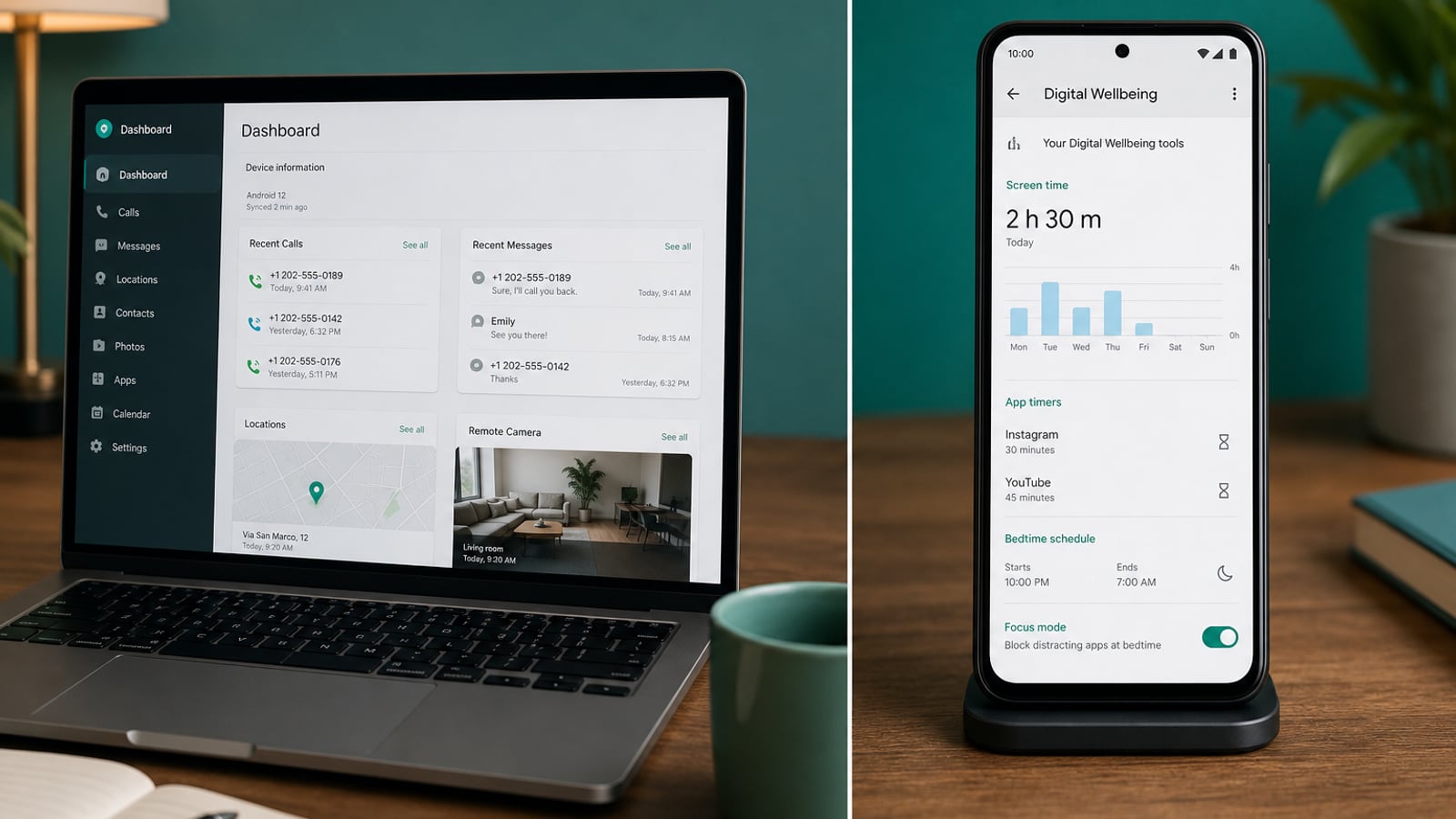
The difference is emphasis, not a hard boundary
Spy app is a search term commonly associated with visibility into phone activity such as location, calls, messages, screens, apps, social activity, or media. Parental-control app usually describes software designed to help a parent set boundaries through screen-time limits, app controls, web filters, routines, and safety alerts.
Many current products combine both approaches. A parental-control suite may monitor messages or location, while an Android monitoring app may include app blocking, geofencing, and screen-time reports. The product's actual features, intended users, and setup matter more than the category name.
For the broader terminology and technical model, start with what a spy app is and our spy app guide.
Monitoring apps emphasize visibility
A monitoring-oriented product generally answers questions about what the enrolled phone reported. It may organize recent locations, app events, call information, supported conversations, screenshots, media, or browser activity in a private dashboard.
Some products also provide temporary live screen, camera, or audio sessions. Those capabilities depend on the Android phone, permissions, connectivity, and plan, and they carry greater privacy implications than a daily screen-time total.
Parental-control apps emphasize rules and intervention
A control-oriented product generally helps shape when and how a child can use a device. Common features include daily limits, bedtime or school routines, app approvals, app blocking, website filters, safe-search settings, internet pause, and reports that help families discuss digital habits.
Some parental-control services add contextual safety alerts. Instead of exposing every supported conversation, they analyze activity and notify the parent when content may involve bullying, self-harm, explicit material, or another configured concern.
Visibility and control solve different problems
Knowing that a social app was active does not limit its use. Blocking an app does not explain the conversations that led to concern. A screen-time schedule can protect sleep without collecting messages, while a communication review may help investigate a specific issue without requiring permanent device restrictions.
Define whether the family needs information, a boundary, an alert, or a combination. That single decision makes product comparisons clearer and helps avoid enabling access that does not contribute to the goal.
- Visibility: location, app activity, calls, messages, media, screens, and device records.
- Controls: time limits, schedules, app blocking, website filtering, and internet pause.
- Alerts: geofence events, risky-content notifications, keywords, or device-security events.
- Live sessions: temporary screen, camera, or audio connections on supported devices.
Platform breadth can change the answer
Android-focused monitoring products can offer deeper device activity because they are designed around one operating system and its permission model. Family-control suites often trade some depth for coverage across iPhone, Windows, Mac, Chromebook, Kindle, or home-network devices.
Neither approach is automatically better. A household with one supervised Android phone may prefer a consolidated Android dashboard. A family managing laptops, tablets, game time, and several mobile platforms may benefit more from cross-platform routines and filtering.
Where MobileTracker360 fits
MobileTracker360 is our Android-focused parental monitoring product. It combines supported location, app and screen activity, calls, messages, social activity, media, and live tools with family features such as screen-time reporting, app blocking, geofencing, and device-security alerts.
That makes it a hybrid: broader visibility than a basic screen-time app, with selected controls for an enrolled family Android phone. It is not designed as a universal control suite for every phone, computer, console, and home network. Explore the mobile tracker overview or interactive demo to judge whether that Android-first approach fits.
Which category suits your family?
Choose a parental-control-first product when the main goals are healthier schedules, app limits, content filtering, and consistent rules across several devices. Choose a monitoring-first product when a defined concern requires supported Android activity to be reviewed in more detail. Choose a location-only tool when coordination is the only problem.
A blended product can be useful when the family needs both context and a limited way to respond, but a longer feature list should not automatically lead to broader collection.
- For bedtime and distraction: prioritize screen-time routines and app controls.
- For travel coordination: prioritize current location, timestamps, and geofencing.
- For a defined communication concern: verify the exact supported apps and record type.
- For family-wide device rules: prioritize platform coverage and device limits.
- For short Android check-ins: verify live-feature compatibility and permissions.
Evaluate the setup, not just the marketing label
Before choosing either category, confirm the supported Android versions, physical-access requirements, requested permissions, synchronization behavior, plan limits, dashboard security, retention, and deletion process. Read first-party compatibility pages alongside feature pages because not every capability works through every installation method.
Be cautious with promises that omit device requirements or imply guaranteed access to every app. Android changes, manufacturer restrictions, connectivity, and permissions can all affect a legitimate monitoring or parental-control service.
Use the least intrusive tool that works
Phone supervision should be limited to a clear family purpose and used only where the account holder has appropriate authority or permission. Explain the boundaries where appropriate, protect the parent account, and review whether access can be reduced as skills and trust grow.
The best distinction is practical: monitoring tools help a parent understand supported activity; parental controls help a parent set and enforce device boundaries. Start with the problem, then choose only the capabilities needed to address it.